


Google Family Link
4.660.99K Reviews
App Specs
- Version
- 2.96.0.2026w32.958332244
- Updated On
- License
- Free
- Downloads
- 100,000,000+
- Developer
- Google LLC
- Categories
- Tools
- Platform
- Android, iOS
Screenshots
 Analysis by AppCompare
Before installing a parental-control app, I’d ask what I actually want to change: a bedtime routine, a better sense of which apps are taking up time, or a way to check that my child arrived safely. Google Family Link is most useful when I treat it as a starting point for family conversations, not as a substitute for them. It’s a free tools app from Google LLC, rated for everyone, and its basic purpose is helping parents guide children’s use of connected devices.
What to expect from parental controls
Family Link is not a general-purpose phone manager for adults, and it is not a filter that makes every online experience safe. Its value is in giving a parent a way to oversee a child’s Google-connected digital routine: checking app activity, setting boundaries, and handling requests for apps. Those controls can help turn a vague concern—“you’re on your phone too much”—into a more specific discussion about habits and expectations.
That distinction matters. A parent who wants a complete record of messages, browsing, or everything a child does on a device should look elsewhere and think carefully about whether that level of monitoring is appropriate. Family Link is better suited to families who want practical guardrails and some visibility while still expecting children to make choices of their own.
The app has a 4.6 average from around 5.1 million ratings, and it has passed 100 million installs. That reach suggests it is a familiar option for families already using Google accounts, but popularity does not make its approach right for every household. I’d judge it by whether its controls fit the conversations and boundaries a family is prepared to maintain.
Getting Started with Google Family Link
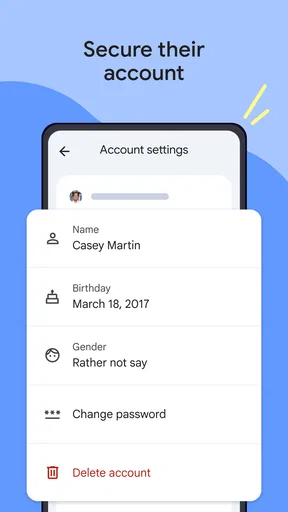
First things first, setting up Google Family Link is a breeze. You start by downloading the app on your device, and then you can create a Google account for your child if they don't already have one. I was pleasantly surprised by how user-friendly the whole process was – no tech wizardry required!
For a first-time setup, I’d do it while both parent and child are available rather than trying to configure everything in a hurry. Make sure you can sign in to the accounts involved, then explain what the app is for before changing limits. That small step can prevent the controls from feeling like a surprise punishment later. The app requires Android 7.0 or later where applicable, and its current version is 2.86.0.2026w21.917793794.
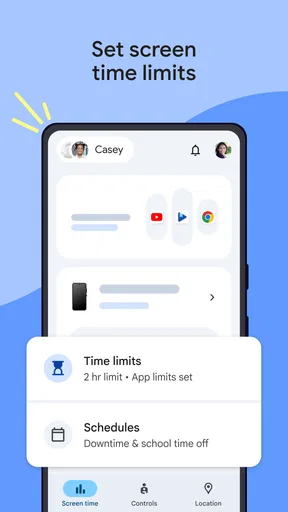
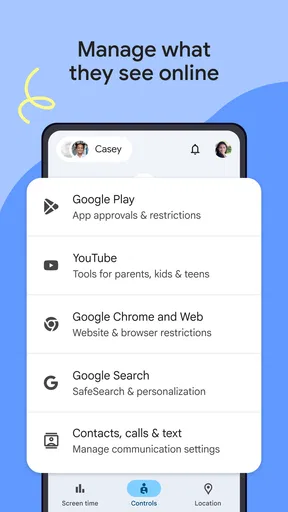
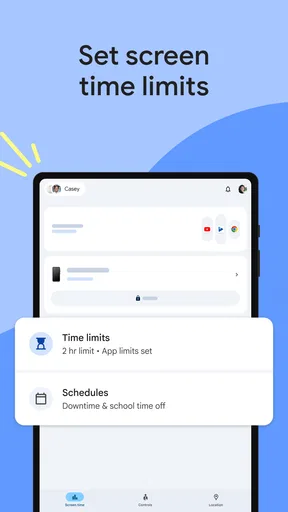
The app is available for both Android and iOS, making it super accessible whether you're an Apple aficionado or an Android enthusiast. Once you have it set up, the app allows you to manage your child's device remotely. From setting screen time limits to approving app downloads, you've got a comprehensive toolkit to ensure your kids are having a safe online experience.
Worth Reading Before You Choose

Baby Panda World Brings Quick Play to Modern Phones, but Its Game Library Feels Busy

ESPN’s Live Game View Makes Following Close Games Easier

QuizzLand Review: A Good Fit for Short Trivia Breaks, Not Every Player

Basketball Stars: Multiplayer Is Fast, but Can It Recover When Matches Go Wrong?

WEBTOON Turns Phone Updates Into a Better Reading Routine

Link to Windows Runs on Shared Habits, Not Social Feeds
“Comprehensive” is best understood as a useful set of parental tools, not a promise that every setting works identically on every device or solves every safety concern. Before relying on a rule, check how it behaves on the child’s device and talk through what happens when a request is denied or a limit is reached. A clear family agreement is often more effective than a restriction nobody understands.
Making the first useful change
For me, the first meaningful success is not turning on every control at once. It’s choosing one problem the family already recognizes and making one manageable adjustment. If app time is the concern, look at the activity view together, choose a reasonable change, and agree when you’ll revisit it. If the immediate need is app approval, decide in advance what a child should include in a request and how quickly you’ll respond.
This is a practical way to avoid a common trap: setting a strict limit before understanding what the child uses the device for. A school-related app, a video call with relatives, and a game may all appear as screen use, but they do not serve the same purpose. The activity information is a conversation aid, not a complete measure of whether a child’s online time is worthwhile.
A typical weekday might look like this: after dinner, I notice a game has become the main evening activity. Instead of abruptly removing access, I can use the report to ask what the child enjoys about it, agree on a stopping time, and use a limit as a reminder of that agreement. The useful result is not simply less game time; it is a routine the child understands and can follow without a daily argument.
Features That Stand Out
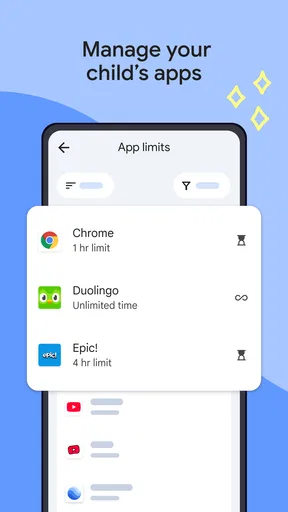
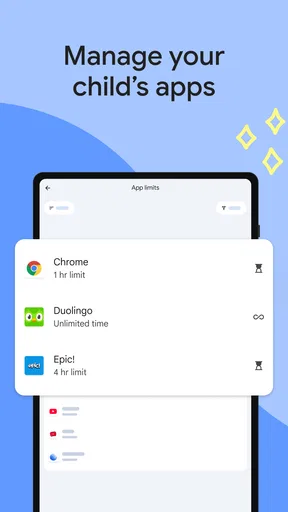
One feature that really caught my attention is the ability to view your child's app activity. You get a weekly or monthly report that shows how much time they're spending on each app. It's like having a digital diary of their online habits, and it can be quite an eye-opener! This feature makes it easy to start a conversation about digital wellbeing without sounding too preachy.
A small but important interpretation tip: look for patterns over time instead of reacting to a single busy day. A sudden spike might reflect a weekend, a new game, or a change in routine; it is not automatically evidence of a problem. Comparing habits with your child’s own goals is more useful than treating a report as a scorecard or comparing one child’s use with another’s.
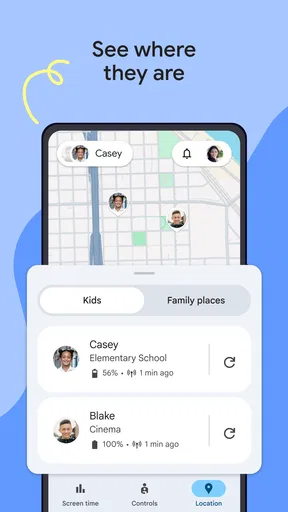
Another standout is the location tracking feature. Now, before you think Big Brother, let me explain. It’s not about constant surveillance, but rather about ensuring your child's safety. With location tracking, you can see where they are, which is super handy if they're out and about. It gives you peace of mind without being invasive.
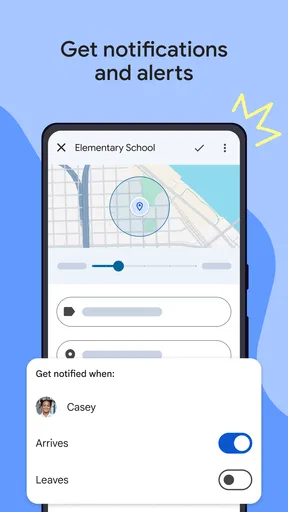
Location sharing works best when everyone knows when it may be checked and why. I would explain it as a practical safety measure for agreed situations, such as coordinating a pickup, rather than quietly checking it throughout the day. If a family cannot agree on that expectation, location tracking may create more tension than reassurance, so the conversation should come before relying on it.
Where it fits—and where it doesn’t
Compared with the built-in parental controls on a phone, Family Link’s appeal is having Google-oriented family oversight gathered in a parent-facing app. Built-in device controls may be enough if a household only needs a basic restriction on one device, and they can be the simpler choice when a family does not want another account-based layer. A third-party monitoring product may offer a different style of oversight, but families should compare its approach carefully rather than assuming more tracking means better protection.
Family Link makes the most sense when a parent wants app-related guidance, a view of usage patterns, and a way to coordinate certain rules remotely. It is less suitable for a family seeking covert monitoring, detailed content inspection, or a universal control panel for devices and services outside its intended Google-centered role. It also cannot replace a conversation about scams, sharing personal information, or what to do when a child encounters upsetting content.
Empowering Digital Independence
One of the things I love about this app is how it balances control with independence. While you can set limits and restrictions, Google Family Link also encourages kids to make smart choices. For example, they can request access to apps, and you can approve or deny these requests. It’s a great way to teach them about responsible digital consumption.
To make requests useful rather than frustrating, I’d establish a simple routine: the child explains what the app is for, and the parent responds when there is time to consider it. That keeps approvals from becoming an instant yes-or-no contest. It also gives parents room to distinguish a practical request from one that can wait, while children learn that asking is part of the process rather than a guarantee of access.
Plus, the app provides educational content and tips directly to your child's device, promoting a healthier digital lifestyle. It's like having a digital mentor guiding them through the online world.
I would treat any tips as prompts for discussion, not as a complete digital-safety curriculum. A child still needs straightforward guidance about privacy, respectful behavior, and asking for help when something feels wrong. Family Link can support that teaching, but the strongest safeguard is a child who feels able to tell a parent what happened without expecting an automatic loss of device access.
Common setup snags and everyday trade-offs
One likely source of confusion is expecting a setting to settle a disagreement by itself. A time boundary can help mark an agreed routine, but it cannot decide whether a particular activity is important or whether an exception is reasonable. If a child needs more time for a planned activity, decide how exceptions will be handled before the situation becomes heated. That makes the rule feel predictable instead of arbitrary.
Another trade-off is convenience versus trust. Remote oversight can be reassuring, but checking reports or location too often may make a child feel watched rather than supported. I’d be open about what I review and keep it tied to a specific concern. As a child demonstrates better judgment, families can revisit which controls still make sense; parental tools work best when they can change alongside the child.
If setup feels confusing, I’d pause before repeatedly changing settings. Confirm that the parent and child are using the intended accounts, then test one control and check the result on the child’s device. A single, verified change is easier to troubleshoot than several overlapping rules. For account or device-specific questions, use Google’s own help resources rather than guessing at what a setting should do.
In the Real World
Okay, let's talk about how this plays out in real life. I found that having these tools at my fingertips made me feel more connected with my kids' digital lives without being intrusive. It opened up a dialogue about what they’re doing online and why certain limits are necessary.
One evening, I noticed my child was spending a bit too much time on a game app. Thanks to the activity reports, I could bring it up casually and discuss setting a healthy gaming schedule. It turned into a positive conversation rather than a confrontational one, which is a win in my book.
That approach is especially useful for parents who are new to digital supervision and want a concrete place to begin without adopting a highly restrictive system. It may be less appealing to older teens who expect greater privacy, or to families whose devices and accounts do not fit comfortably into Google’s setup. In those cases, agreeing on device-level rules together—or using the simpler controls already available on a device—may be a better first step.
The Bottom Line
So, is Google Family Link worth it? In my opinion, absolutely. It's a powerful tool for any parent wanting to foster a safe and balanced digital environment for their kids. The app provides just the right amount of oversight and educational support without being overbearing.
I’d recommend it to a parent who wants a practical starting point, is willing to explain the rules, and will use activity and location tools with care. I would not choose it as a replacement for direct supervision when a child is very young, as a guarantee against harmful content, or as a way to secretly monitor a teenager. Those are different needs, and no parental-control app can remove the need for judgment and conversation.
If you're on the fence, I'd say give it a try. It's free, easy to use, and can be a game-changer in managing your family's digital life. With Google Family Link, you're not just keeping an eye on your kids' online activities; you're guiding them towards becoming responsible digital citizens.
Ready to dive in? You can download it for free on your preferred app store and start exploring its features today. Trust me, your future self will thank you!
Pros
- Easy setup process for parents.
- Monitors app usage and screen time.
- Location tracking feature included.
- Remote lock for device management.
- Customizable content filters available.
Cons
- Limited features for older teens.
- May drain battery quickly.
- Requires internet for full functionality.
- Inconsistent notifications reported.
- Some privacy concerns over data access.
FAQs for Google Family Link
What is Google Family Link and how does it work?
Google Family Link is a parental control app that lets you manage your child’s device usage. It allows you to set screen time limits, approve or block apps, and monitor app activity. You can also track their location in real-time, ensuring a safer online experience for your kids.
Is Google Family Link free to use?
Yes, Google Family Link is a free application available on both Android and iOS platforms. It offers a range of parental controls without any subscription fees, making it accessible for parents who want to monitor and manage their children's digital activities.
What age group is Google Family Link suitable for?
Google Family Link is designed for children under the age of 13, but parents can continue to use its features for older children if desired. It helps parents guide their kids’ online activity while giving them a level of independence in a safe digital environment.
Can Google Family Link monitor all apps on my child’s device?
Google Family Link can monitor most apps on your child's device, including popular social media and game apps. However, there may be some apps that it cannot control or access, depending on privacy settings and developer restrictions. It’s best to review app permissions regularly.
How do I set up Google Family Link on my devices?
Setting up Google Family Link involves downloading the app on both the parent’s and child’s devices. You’ll need to create a Google account for your child if they don’t have one. Follow the on-screen instructions to link the accounts and customize settings according to your preferences.


